
How to Install the Backblaze Client Silently with Jamf Pro (Centralized)
- Print
- DarkLight
How to Install the Backblaze Client Silently with Jamf Pro (Centralized)
- Print
- DarkLight
Article summary
Did you find this summary helpful?
Thank you for your feedback
You can deploy and manage Backblaze Backup Client v10 on macOS using Jamf Pro, including silent installation, JSON bootstrap configuration, Smart Computer Group compliance automation, and operational control with bzCLI.
This guide is intended for enterprise Mac administrators, security engineers, and IT operations teams responsible for deploying and governing the Backup Client at scale using Jamf Pro.
Important
User accounts must already exist in Backblaze and be added to the appropriate organization or group before deployment. This method does not create new accounts. Use the sign-in flow with existing credentials.
Overview
The integration follows a policy-driven lifecycle model designed for scalable, zero-touch enterprise environments, using Smart Computer Groups and Extension Attributes to maintain continuous compliance.
Deployment Models
Backblaze supports two deployment models:
Centralized Deployment Model
A single administrative Backblaze account manages multiple endpoints through Jamf policies and configuration.
Designed for enterprise, RMM, and MDM-managed environments requiring centralized control and compliance visibility.
Decentralized Deployment Model
Each endpoint signs in with its own Backblaze account.
Designed for environments where devices are managed individually and centralized account governance is not required.
For more information about this deployment model, see How to install the Backblaze Client Silently with Jamf (Decentralized).
Key Capabilities
Automated installation and configuration through Jamf policies and scripts
Compliance visibility using Extension Attributes and Smart Computer Groups
Operational safeguards for Private Encryption Keys (PEKs), including rotation workflows
Architecture
Backup Client integrates with Jamf Pro to enable centralized deployment and automated lifecycle management across managed macOS devices. Installation and remediation tasks are executed locally on endpoints using bzCLI, while compliance state is surfaced through Extension Attributes and evaluated using Smart Computer Groups to drive automated policy enforcement.
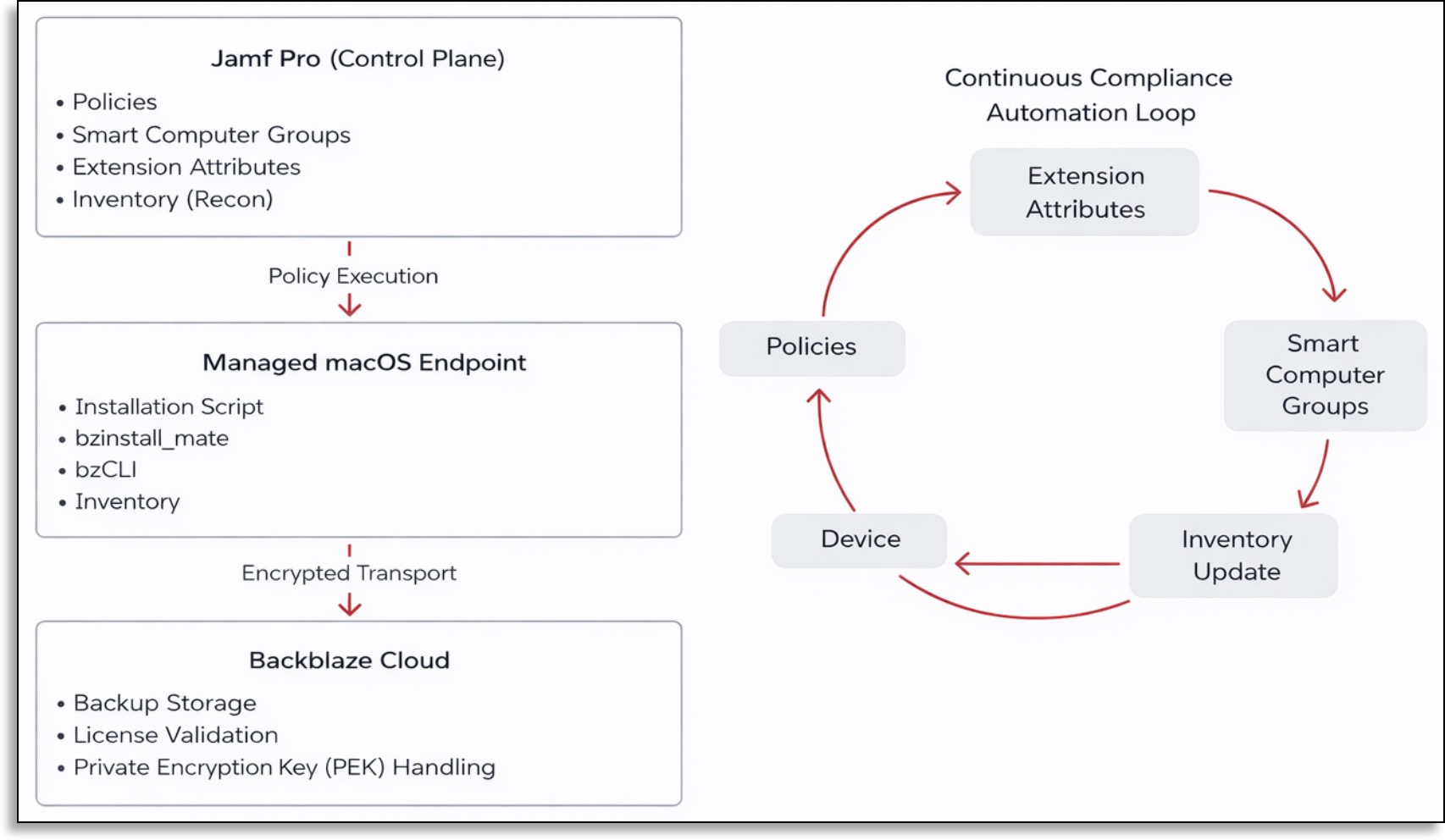
Deployment Lifecycle
The deployment lifecycle follows seven stages:
.png)
Device Enrollment
Macs are enrolled into Jamf Pro (for example, via Apple Business Manager or user-initiated enrollment) and become managed endpoints eligible to receive Backblaze policies and configuration.
Installation Policy Execution
A scoped Jamf policy runs the Backblaze installation script to deploy and initialize the Backup Client silently using predefined configuration settings.
Inventory Update (Recon)
Following installation, Jamf performs an inventory update to report application presence and relevant state information back to Jamf Pro.
Extension Attribute Population
During inventory, Extension Attributes gather telemetry such as installation state, client version, backup status, last backup timestamp, and encryption state.
Smart Computer Group Evaluation
Jamf evaluates Extension Attribute values and application state to classify devices into compliance groups for reporting and policy scoping.
Operational Policy Execution
When required, operational policies run against targeted Smart Computer Groups to remediate issues (for example, initiating backups or enforcing encryption requirements).
Continuous Compliance Feedback Loop
Subsequent inventory cycles refresh telemetry, re-evaluate Smart Computer Group membership, and confirm that remediation policies have resolved detected issues, maintaining ongoing compliance.
Security and Privacy Model
The Backup Client operates within established enterprise security boundaries, supporting least-privilege script execution, encrypted transport, auditable configuration management, and optional PEKs to provide end-to-end data confidentiality.
Deployment Workflow
The Backup Client v10 is deployed using a Jamf policy that executes an installation script.
The script performs the following actions:
Downloads the official Backblaze v10 DMG from https://secure.backblaze.com/mac/install_backblaze.dmg.
Mounts the DMG.
Executes
bzinstall_matewith the specified JSON configuration (-cfg <configuration.json>).Verifies that the Backblaze service is running.
Cleans up mounted resources after installation completes.
Prerequisites
Before you begin, ensure that the following conditions are met.
Required macOS Privacy and System Profiles
Backup Client v10 requires pre-approved macOS privacy permissions in managed environments. Deploy the following configuration profiles in Jamf Pro before installation.
Full Disk Access (FDA)
Profile:
PPPC-Backblaze-FDA.mobileconfigBundle ID:
com.backblaze.backblaze
Background Service / Menu Component Access
Profile:
PPPC-Backblaze-bzbmenu-FDA.mobileconfig
Managed Login Items (macOS 13+)
Profile:
Backblaze-Managed-Login-Items.mobileconfig
Optional Profiles (Environment-Specific)
Deploy these only if required by your security policy or environment configuration.
PPPC-Backblaze-LocationServices.mobileconfigPPPC-Location-Backblaze.mobileconfig
Reference profiles are maintained in the official Backblaze repository: https://github.com/Backblaze/rmm/tree/main/jamf/profiles.
Additionally, ensure that the following requirements are met before deploying Backup Client with Jamf Pro:
A Jamf Pro tenant with administrator-level access to create and manage policies, scripts, Smart Computer Groups, and Extension Attributes.
Managed macOS devices enrolled in Jamf (Apple Business Manager / Automated Device Enrollment recommended).
An active Backblaze Computer Backup instance for your organization.
Backblaze Group authorization details required for bootstrap configuration.
Outbound network connectivity from managed Macs to Backblaze service endpoints, consistent with your firewall and proxy policies.
Pre-approved macOS Privacy Preferences Policy Control (PPPC) and related configuration profiles for Backblaze (Full Disk Access, background components, Managed Login Items, and any required Location Services permissions) deployed prior to installation.
Create the Organization Configuration (JSON Bootstrap)
Define an organization-level configuration file that the installation script will use during client initialization. This JSON file specifies account enrollment parameters and administrative settings that are applied silently during deployment. This file is referenced by the installation script and passed to the Backblaze installer using the parameter: -cfg. It is not executed directly.
Do not include real Group IDs or Group Tokens in documentation. Store these values only in secured locations (for example, Jamf script parameters or encrypted variables).
Example
{
        "installation": {
        "cmd_param": "-nogui -createaccount_or_signinaccount user@company.com <GROUP_ID> <GROUP_TOKEN> us"
        },
        "settings": {
        "online_hostname": "managed-mac-hostname",
        "lock_exclusion": true,
        "lock_schedule": true,
        "suppress_notification": true
        }
        }
Create the Installation Script
Create a Jamf script that installs and initializes the Backup Client v10 using your organization’s configuration. This script is executed by a Jamf policy and performs the silent installation workflow.
To add the script to Jamf Pro, refer to this documentation.
Production-ready installation, operational, and Extension Attribute scripts are maintained in the official Backblaze Jamf RMM repository: https://github.com/Backblaze/rmm/tree/main/jamf/scripts/install
Backblaze recommends referencing these maintained scripts directly to ensure consistency with the current supported implementation.
Create Extension Attributes
An Extension Attribute is a custom data point collected during Jamf inventory updates. Create one Extension Attribute per data point.
To add an executive attribute in Jamf Pro, refer to this documentation.
Backblaze-maintained Extension Attribute scripts are available in the official Jamf RMM repository: https://github.com/Backblaze/rmm/tree/main/jamf/scripts/extension-attributes.
Backblaze recommends referencing these scripts directly to ensure traceability, version alignment, and consistency with supported implementations.
Installation State Extension Attribute: https://github.com/Backblaze/rmm/blob/main/jamf/scripts/extension-attributes/backblaze-installed.sh
Client Version Extension Attribute: https://github.com/Backblaze/rmm/blob/main/jamf/scripts/extension-attributes/backblaze-client-version.sh
Backup Status Extension Attribute: https://github.com/Backblaze/rmm/blob/main/jamf/scripts/extension-attributes/backblaze-status-summary.sh
Health Score Extension Attribute: https://github.com/Backblaze/rmm/blob/main/jamf/scripts/extension-attributes/backblaze-health-score.sh
A summarized indicator derived from service state, last backup time, and license status for quick compliance triage.
Create Smart Computer Groups
A Smart Computer Group in Jamf Pro automatically includes devices that match defined criteria.
In this integration, Smart Computer Groups evaluate Backblaze Extension Attribute values to dynamically segment devices.
To create a Smart Computer Group in Jamf Pro for each of the following groups, refer to this documentation.
Backblaze Not Installed
This group targets devices that require installation policy execution.
Display name:
Backblaze – Not InstalledExtension Attribute:
Installation StateOperator:
isValue:
Not InstalledEvaluation:
Match ALL
Backup Paused
This group targets devices requiring automatic resume remediation.
Display name:
Backblaze – Backup PausedExtension Attribute:
Backup StatusOperator:
isValue:
PausedEvaluation:
Match ALL
Optional Smart Computer Groups
Backblaze – Installed (Installation State is Installed)
Backblaze – Backup Not Running (Backup Status is Not Running)
Backblaze – Missing PEK (has_pek is false)
Backblaze – Backup Older Than 7 Days (Last Successful Backup Timestamp older than 7 days).
The following table below summarizes Smart Group–to–Policy relationships within the automated compliance model.
Smart Group | Purpose | Trigger | Execution Frequency | Policy/Script |
|---|---|---|---|---|
Backblaze – Not Installed | Deploy Backblaze client | Enrollment Complete / Recurring Check-in | Once per computer | Install Backblaze Desktop v10 (DMG + JSON cfg) |
Backblaze – Backup Paused | Resume paused backups | Recurring Check-in | Ongoing | backblaze-resume-backup.sh |
Backblaze – Backup Not Running | Trigger backup immediately | Recurring Check-in | Ongoing | backblaze-backup-now.sh |
Backblaze – Missing PEK | Apply or enforce encryption policy | Recurring Check-in | Ongoing | backblaze-set-pek.sh |
Backblaze – Installed | Compliance validation group | Inventory-based | Dynamic | Reporting only (no policy execution) |
Create the Installation Policy
A Jamf policy tells Jamf when to run a script, how often to run it, and which devices should receive it.
This policy should be scoped only to the “Backblaze Not Installed” Smart Computer Group. After installation, the device automatically leaves this group and the policy will no longer apply.
To create an installation policy in Jamf Pro, refer to this documentation.
# Jamf policy payload suggestion (pseudocode via CLI)
        jamf policy -event backblaze_install
Display name:
Install Backblaze Desktop v10Trigger:
Enrollment CompleteandRecurring Check-inExecution Frequency:
Once per computerInstallation script:
Install Backblaze Desktop v10 (DMG + JSON cfg)Scope target (Smart Computer Group):
Backblaze Not InstalledIf no scope is configured, the policy will not run on any device.
Maintenance (recommended): Enable
Update Inventoryafter successful installation to refresh Extension Attributes and Smart Groups immediately.
Create Operational Scripts and Policies
Operational scripts allow administrators to remotely control backup behavior.
Operational automation is implemented using maintained Jamf action scripts:
backblaze-backup-now.sh
backblaze-pause-backup.sh
backblaze-resume-backup.sh
backblaze-set-pek.sh
backblaze-change-pek.sh
backblaze-clear-pek.sh
Repository: https://github.com/Backblaze/rmm/tree/main/jamf/scripts/actions
Create Operational Scripts
These scripts call the Backblaze bzCLI locally on each device.
To create an operational script in Jamf Pro, refer to this documentation.
Repository: https://github.com/Backblaze/rmm/tree/main/jamf/scripts/actions
Display name:
Backblaze Backup Now
https://github.com/Backblaze/rmm/blob/main/jamf/scripts/actions/backblaze-backup-now.shDisplay name:
Backblaze Resume Backup
https://github.com/Backblaze/rmm/blob/main/jamf/scripts/actions/backblaze-resume-backup.shDisplay name:
Backblaze Pause Backup(optional)
https://github.com/Backblaze/rmm/blob/main/jamf/scripts/actions/backblaze-pause-backup.sh
Create Operational Policies
Operational policies allow administrators to remotely control backup behavior using the scripts created in the last step.
To create an operational policy in Jamf Pro, refer to this documentation. Repeat these steps for each of the following operational policies.
Backup Now
Display name:
Backblaze Backup NowScript:
Backblaze Backup NowScope:
Backblaze Backup Not RunningTrigger:
Recurring Check-in(You may also configure a custom trigger.)Frequency:
Ongoing
Resume Backup
Display name:
Backblaze Resume BackupScript:
Backblaze Resume BackupScope:
Backblaze Backup PausedTrigger:
Recurring Check-inFrequency:
Ongoing
Pause Backup (Optional)
Select the appropriate Smart Computer Group if you have one defined for pausing conditions.
Display name:
Backblaze Pause BackupScript:
Backblaze Pause BackupScope: (Defined by your organization)
Trigger:
Recurring Check-inFrequency:
Ongoing
Update Management
The Backup Client updates automatically on a recurring basis, consistent with standard (non-managed) installations. Jamf-managed deployments do not require a separate update mechanism by default.
Forcing or Staging an Update
The installation script used during initial deployment also performs an in-place upgrade when run against a device on which the Backup Client is already installed. This allows administrators to force or stage updates without maintaining a separate update script.
To control update timing (for example, validating a new release before a broad rollout):
Create a Static Computer Group containing the target devices (for example, a pilot ring).
Scope a policy running the installation script to that Static Group.
Run the policy against the pilot ring and confirm success using the Client Version Extension Attribute.
Expand to a Static Group covering the remaining fleet once validated.
Note
The installation policy created earlier in this guide is scoped to the "Backblaze – Not Installed" Smart Computer Group and does not re-run on devices where the client is already installed. To force or stage an update, scope a policy to a Static Group instead, using the same installation script.
Monitoring & Continuous Compliance
Inventory updates continuously refresh Extension Attribute values, re-evaluate Smart Group membership, and automatically trigger policy-based remediation.
Compliance and Reporting
Extension Attributes
Extension Attributes serve as the compliance data source for Smart Group scoping, automated remediation policies, and executive reporting dashboards.
Common Backblaze Extension Attributes
Installation State
Client Version
Backup Status
Last Successful Backup Timestamp
Device Identifier (HGUID)
has_pek
Health Score (optional)
Smart Computer Groups
Group devices by install state, backup health, and PEK status to drive policy scoping and alerting.
Compliance Views and Reporting
Create Jamf saved searches and dashboards based on Extension Attribute values to visualize fleet posture and service level agreement (SLA) adherence.
PEK Governance
PEK rotation and escrow workflows must be thoroughly tested, validated, and documented.
Backblaze cannot recover lost Private Encryption Keys (PEKs).
Operational Scripts
The following maintained Jamf action scripts support operational automation:
backblaze-backup-now.sh
backblaze-pause-backup.sh
backblaze-resume-backup.sh
backblaze-set-pek.sh
backblaze-change-pek.sh
backblaze-clear-pek.sh
Repository: https://github.com/Backblaze/rmm/tree/main/jamf/scripts/actions
# Periodic audit
        /usr/local/bin/bzcli license check && /usr/local/bin/bzcli health summarize
PEK Options and Handling
PEKs and related secrets must be managed using secure, repeatable processes to ensure recoverability and compliance.
Secret Handling Recommendations
Never embed secrets in scripts or configuration profiles.
Use secure variables
Apply appropriate access controls
Rotate secrets on a defined cadence
PEK Handling Models
Option 1: User-Held PEK with Enterprise Escrow Workflow
The user retains the Private Encryption Key (PEK), and the organization implements a documented escrow process to securely store and recover the key when necessary.
Option 2: Admin-Escrowed PEK in Secure Key Management System
The organization centrally escrows the PEK within a secure key management system that enforces strict access controls and comprehensive access logging.
Troubleshooting
Troubleshooting installation or policy execution issues requires validating both deployment logs and required macOS approvals.
Review installation logs and Jamf policy history to identify failures.
Confirm PPPC profiles and system extension approvals are configured and active prior to installation.
Change Management and Rollout Plan
Stage deployments through pilot rings, expand based on measured health metrics, and promote to production only after the validation checklist is satisfied.
Validation Checklist
Verify each of the following items before proceeding to production deployment.
FAQs
Can users self-heal failures?
Yes. Scoped remediation policies can be automatically triggered by Smart Computer Groups.
How are updates handled?
The Backup Client updates automatically on a recurring basis, the same as in a standard (non-managed) installation. A separate update policy isn't required by default. See Update Management for how to control update timing if needed.
Was this article helpful?