
Back Up Google Drive
- Print
- DarkLight
Back Up Google Drive
- Print
- DarkLight
Article summary
Did you find this summary helpful?
Thank you for your feedback
NOTE:
Google Drive's most recent update prevents Backblaze from backing up files that Google Drive synced.
To back up these files, download them to another local location where Backblaze can read them.
To back up these files, download them to another local location where Backblaze can read them.
Google Drive has settings in place that can prevent it from backing up to Backblaze Computer Backup. Files that are stored only in the cloud will not back up to Backblaze, but you can configure Google Drive to ensure that it can back up.
Enable Mirror Files in Google Drive
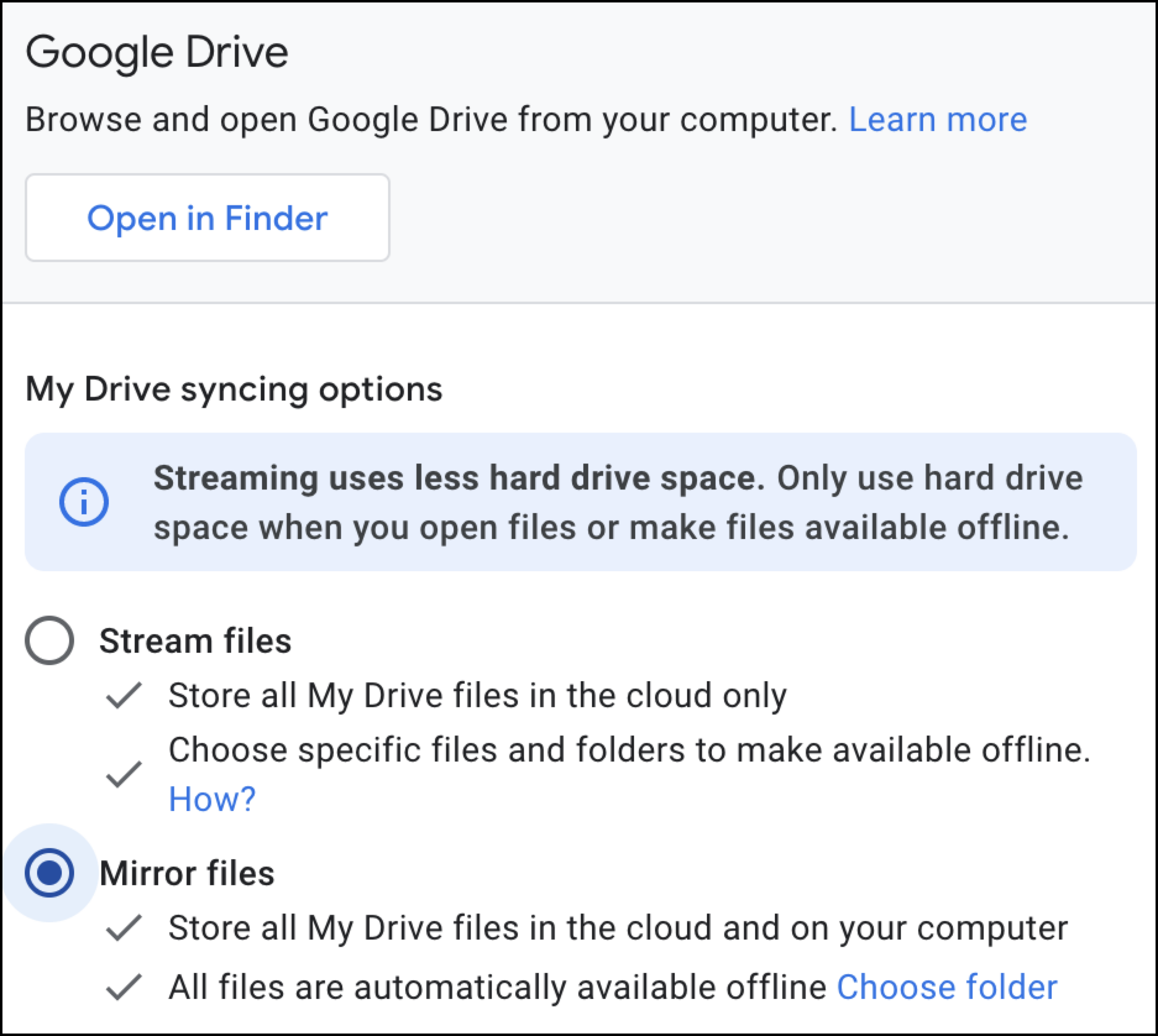
- Open Google Drive.
- Click Settings, and click Preferences.
- In the left menu, click Folders from Drive.
- Under "My Drive syncing options," enable Mirror files.
Configure My Drive Properties
For Windows, additional permissions may be required to allow your system to have full access to the My Drive folder.
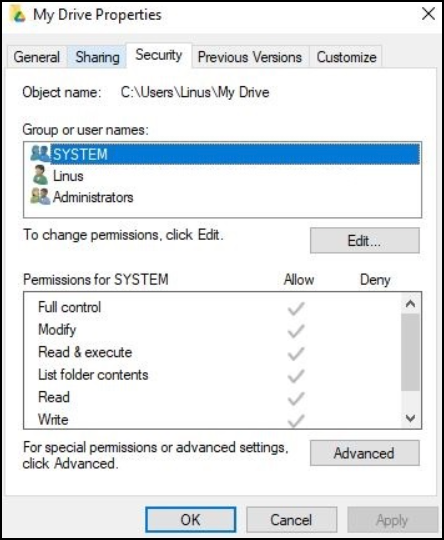
- Locate and right-click the My Drive folder.
- Select Properties.
- Select the Security tab.
- Enable SYSTEM permissions.
- Click Apply, and click OK.
Was this article helpful?